> For the complete documentation index, see [llms.txt](https://support.referralhero.com/llms.txt). Markdown versions of documentation pages are available by appending `.md` to page URLs; this page is available as [Markdown](https://support.referralhero.com/campaign-builder/integrations/hubspot.md).
# HubSpot
The ReferralHero/HubSpot integration is a robust solution offering several powerful functionalities:
* Import existing contacts from HubSpot to ReferralHero
* Automatically Add NEW HubSpot contacts to ReferralHero
* Sync ReferralHero subscribers to your HubSpot account
* Use your own HubSpot form to add new HubSpot contacts to your ReferralHero campaign
* Trigger a ReferralHero conversion event when there is a lifecycle or deal stage update on HubSpot
## Import HubSpot contacts to ReferralHero
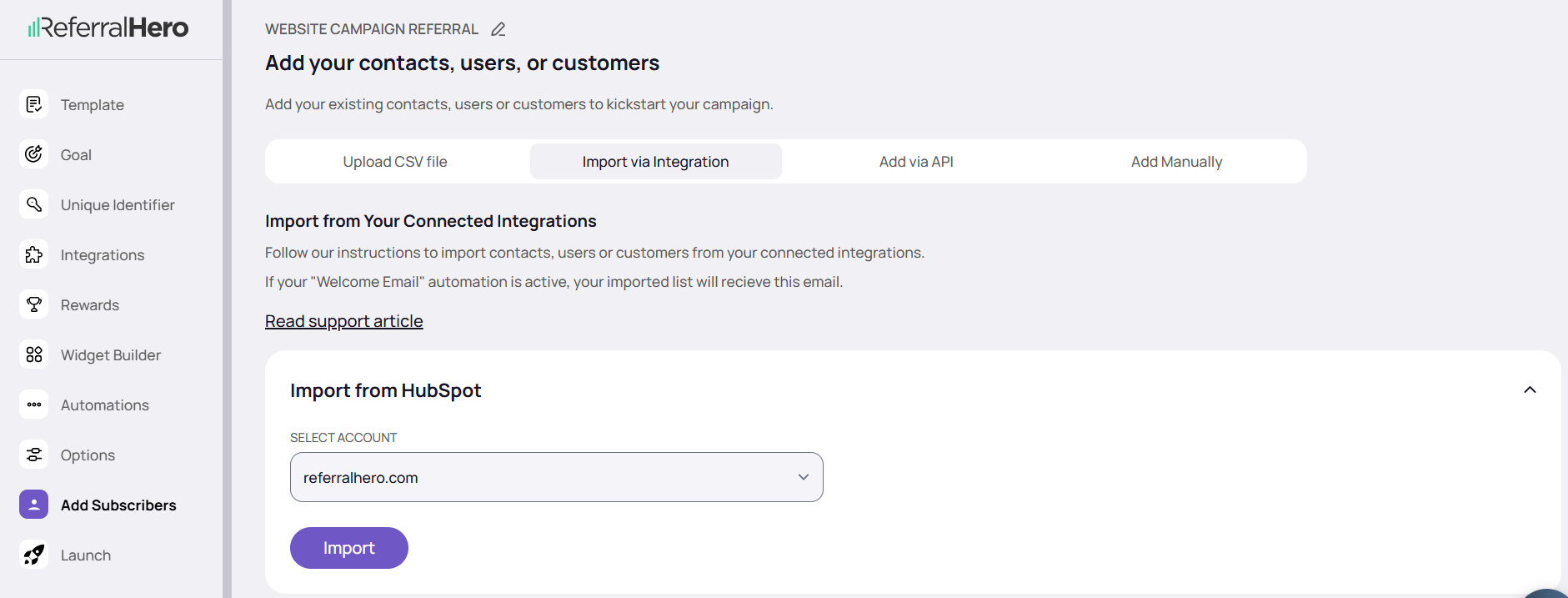
If you have existing contacts in your HubSpot account and you want to import/subscribe them all to your ReferralHero campaign, you'll want to follow these instructions:
1. Go to your *Campaign Dashboard > Edit Campaign > Add Subscribers > Import via Integration*.
2. If your HubSpot account is not connected yet, go to the Integrations section and complete the connection.
3. Choose the HubSpot account from which you want to import contacts/subscribers.
4. Imported subscribers will automatically receive the Welcome Email/SMS if it is enabled in your campaign.
5. Click on the button **Import**
{% hint style="info" %}
We will import your subscribers into your ReferralHero campaign immediately. Depending on how many subscribers you are importing, it might take from a few minutes to several hours. We will send you an email when the import is finished.
{% endhint %}
{% hint style="warning" %}
**NOTE:** If you turn on the HubSpot integration (see the section below), ReferralHero will populate the custom fields in your HubSpot account with the subscriber's values.
{% endhint %}
## Add New Hubspot Contacts to ReferralHero
{% hint style="danger" %}
**IMPORTANT:** To ensure accurate tracking of HubSpot contacts, please make sure the **HubSpot Tracking Code** is installed on your website. This is necessary to allow ReferralHero to track referrals accurately.
You can find the tracking code in your HubSpot account by going to **Settings → Tracking & Analytics → Tracking Code**. Once copied, embed it on your website.
{% endhint %}
ReferralHero's HubSpot Contact Created event is a proprietary algorithm that accurately tracks and identifies people as non-referrals or referrals and adds them to your ReferralHero campaign when a new contact is created in your Hubspot account.
1. In ReferralHero, navigate to Edit Campaign > Integrations > HubSpot, and click the "Connect your HubSpot account" button.
2. Choose the HubSpot account you want to connect to ReferralHero
3. Choose the HubSpot contact list from the HubSpot Domain dropdown
4. Click Save
5. The "Hubspot Contact Created" event is automatically created upon account connection.
If the event is not created in your account, manually create the "Hubspot Contact Created" event.
1. Utilize the "Add event to track" button within the HubSpot integration page. Choose the “Create Contact” event type.
2. Decide if you want to add all (non-referrals and referrals) or referrals only when a new HubSpot Contact Created event occurs.
The integration will automatically create the following custom fields in your HubSpot account.
| **CODE** | Subscriber's unique referral code |
| ------------------ | -------------------------------------------------- |
| **EX\_FIELD** | Subscriber's extra field value |
| **EX\_FIELD\_2** | Subscriber's second extra field value |
| **LAST\_REF** | Timestamp of last referral |
| **POINTS** | Subscriber’s total accumulated points |
| **POSITION** | Subscriber’s position |
| **REF\_LINK** | Subscriber's unique referral link |
| **REFERRER** | Subscriber’s referrer’s name |
| **SOURCE** | Subscriber's source. If empty value will be "None" |
| **SUB\_ID** | Subscriber's id |
| **TOT\_REF** | Subscriber's total number of referrals |
| **EM\_LINK** | Subscriber’s email link |
| **FB\_LINK** | Subscriber’s Facebook link |
| **TW\_LINK** | Subscriber’s Twitter link |
| **ADVOCATE\_CODE** | Subscriber’s referrer’s referral code |
| **OPTION\_FIELD** | Subscriber's option field value |
Now when a person signs up for your ReferralHero campaign, they will be immediately added to your HubSpot account.
{% hint style="info" %}
**NOTE**: ReferralHero will automatically update these custom fields when a person signs up or when things change (eg: when a subscriber refers a new person, their TOT\_REF value changes).
{% endhint %}
## How to Use Your Own HubSpot Signup Form
Generally, it is recommended to use our Contact Created event (explained above) however if you want to specifically track individual HubSpot forms or if you have a high volume form (100+ new contacts per day) you can track form submissions to ReferralHero by incorporating the ReferralHero JavaScript into your HubSpot form.
**Add ReferralHero JavaScript to Your HubSpot Form**
1. Add one of the following JavaScript codes to the end of your HubSpot HTML form code. This code will seamlessly track new signups from your HubSpot form to your ReferralHero campaign.
{% hint style="info" %}
**NOTE:** You need to replace the **hubspot\_form\_id** with your own HubSpot form ID.
{% endhint %}
Use **RH.form.submit()** to add both non-referrals and track referrals to the referral campaign
```javascript
window.RHConfig = {
callbacks: {
ready: function() {
setTimeout(function(){
var form = document.getElementById('hs-form-iframe-0').contentWindow.document.getElementById('hubspot_form_id');
form.addEventListener("submit", function(e){
var data = {
email: form.querySelector('#email-hubspot_form_id').value,
name: form.querySelector('#firstname-hubspot_form_id').value + ' ' + form.querySelector('#lastname-hubspot_form_id').value
};
if (RH) {
RH.form.submit(data);
}
});
}, 2000);
}
}
}
```
Use **RH.pendingReferral()** to track only referrals with ‘Pending’ status to the multi-step conversion event campaign
```
window.RHConfig = {
callbacks: {
ready: function() {
setTimeout(function(){
var form = document.getElementById('hs-form-iframe-0').contentWindow.document.getElementById('hubspot_form_id');
form.addEventListener("submit", function(e){
var data = {
email: form.querySelector('#email-hubspot_form_id').value,
name: form.querySelector('#firstname-hubspot_form_id').value + ' ' + form.querySelector('#lastname-hubspot_form_id').value
};
if (RH) {
RH.pendingReferral(data);
}
});
}, 2000);
}
}
}
```
2\. (Optional)
To send other values from the HubSpot form to your ReferralHero campaign add this to the data line:
```javascript
referral_hero_field_name: form.querySelector(’#HUBSPOT_FIELD_NAME').value
```
For example to send submitted data to the ReferralHero Extra Field profile field add:
```javascript
extra_field: form.querySelector('#extra_field-hubspot_form_id').value
```
3\. Now when someone signs up through your HubSpot form, they will be added to your HubSpot contact list and ReferralHero campaign.
## **Track a HubSpot Conversion Event**
If your HubSpot contacts undergo a "Lifecycle Stage" or a "Deal Stage", you can trigger the following actions in ReferralHero:
1. Add all (non-referrals and referrals)
2. Add referrals only
3. Total spend updates
4. Change referral status (most common use case)
**Steps:**
1. Click the "Add Event To Track" button.
2. Provide a name for the event.
3. Select the HubSpot event type and stage to track.
4. Choose the 'Trigger Event Type' option corresponding to the action you want to perform in ReferralHero, such as changing a referral status.
**Change Referral Status to Unqualified**
* The **Change Referral Status** event allows updates from any current referral status to **Unqualified** (one-way updates)
* When **Unqualified** is selected in the “Referral status changes to” dropdown, the “Referral status changes from” dropdown is removed
* Referrals are automatically moved to **Unqualified** when the trigger condition is met, regardless of their current status
* Unqualified is a non-linear status and does not follow the standard conversion flow