> For the complete documentation index, see [llms.txt](https://support.referralhero.com/llms.txt). Markdown versions of documentation pages are available by appending `.md` to page URLs; this page is available as [Markdown](https://support.referralhero.com/campaign-builder/integrations/telegram.md).
# Telegram
Follow these steps to integrate Telegram within the Advocate Dashboard:
#### Create a Bot with BotFather
1. Open Telegram and search for BotFather
2. Start a chat and send the command: **/newbot**
3. Follow the instructions:
* Provide a name for your bot
* Choose a username (must end in "bot", e.g. MyReferralBot)
4. Once set up, BotFather will generate a bot token
#### Add the Bot as an Administrator to Your Channel
1. Open your Telegram channel
2. Tap the three-dot menu in the top-right corner
3. Select "Manage Channel"
4. Click "Administrators"
5. Select "Add Administrator" and choose the bot created in Step 1
6. Save the changes
#### Connect Your Bot to the Advocate Dashboard
1. Go to Widget Builder > Advocate Dashboard > Dashboard
2. Add the "Social Actions" element
3. In the "Telegram Text Customization" section:
* Enter your bot token in "Telegram Bot Token"
* Provide your "Telegram Invite Link"
4. Save the changes
#### User Experience
1. The user clicks the Join Telegram button on the Advocate Dashboard
2. They enter their phone number on the next page
3. Telegram sends a confirmation message to their Telegram account
4. The user confirms the request
5. The user successfully joins the group
6. The "Join" button on the Dashboard updates to a checkmark
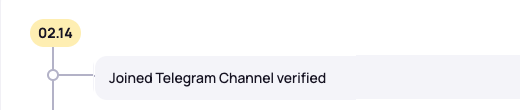
7. "Joined Telegram Channel verified" is logged in the subscriber's profile on your admin dashboard
8. If points are assigned for joining Telegram, the user earns them automatically