> For the complete documentation index, see [llms.txt](https://support.referralhero.com/llms.txt). Markdown versions of documentation pages are available by appending `.md` to page URLs; this page is available as [Markdown](https://support.referralhero.com/integrate/mobile-sdks/react-native/mobile-app-testing-in-development-mode.md).
# Mobile App Testing in Development Mode
### **1. Introduction**
This document guides **developers and testers** on how to test the mobile app in **development mode** before it is live on the App Store or Google Play Store. It covers key functionalities such as **universal links, referral tracking, and redirection behavior**.
***
### **2. Key Features & Testing Steps**
**2.1. Optional App Store Links During Campaign Setup**
* Users can **skip** providing **App Store / Google Play Store links** during campaign setup if the app is not yet live.
* These links can be added later once the app is published.
**Testing Steps:**
1. Create a campaign **without** entering store links.
2. Verify the campaign is saved successfully.
3. Later, update the campaign with valid store links and confirm they are stored correctly.
***
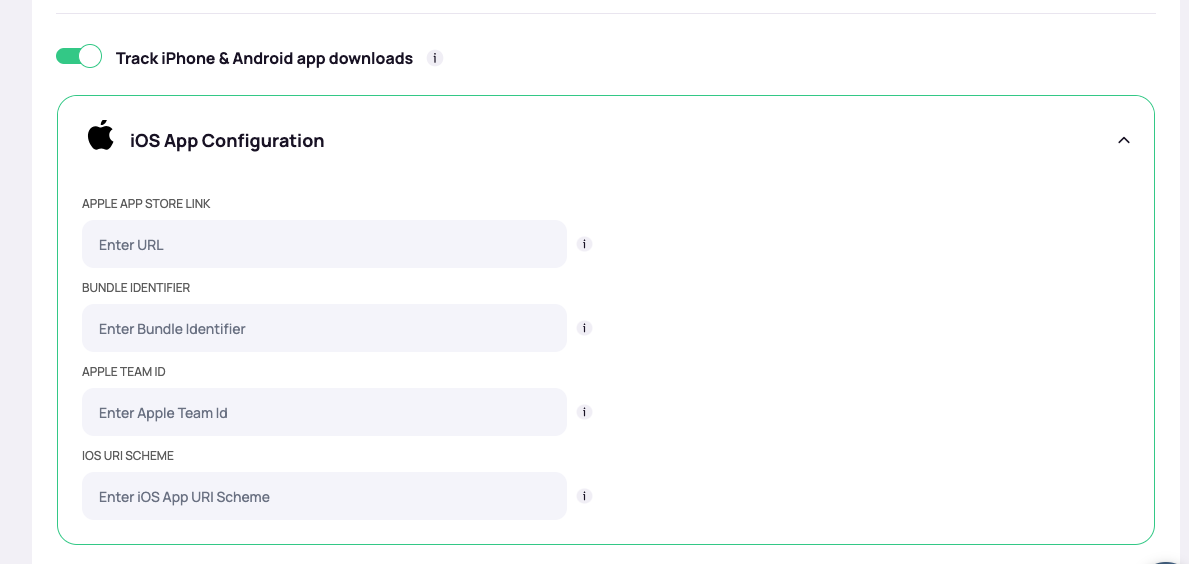
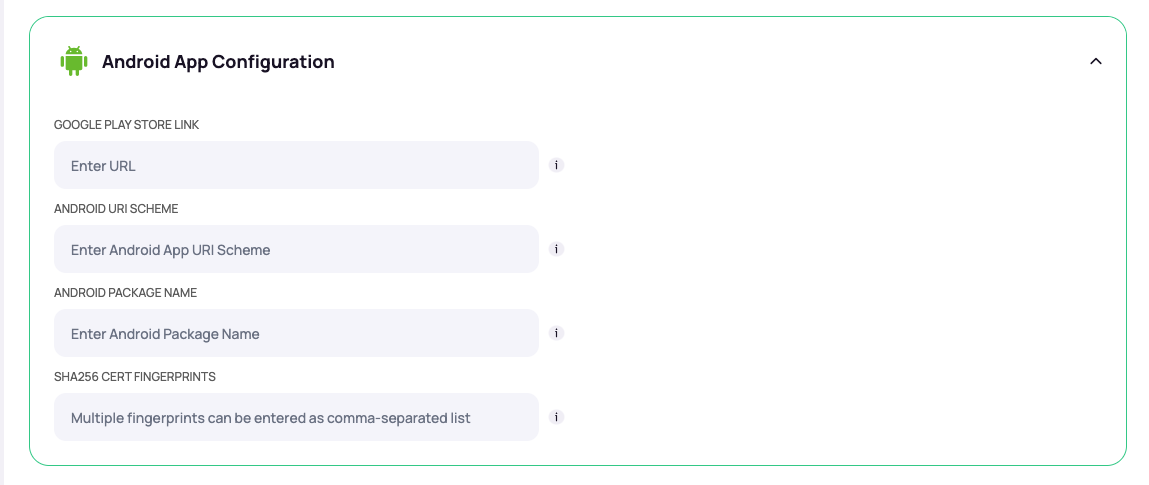
#### **2.2. Enabling App Download Tracking (Required for Universal Link)**
* Before using the **universal link**, the **Track iPhone & Android App Downloads** toggle must be **enabled** in the settings and Your **Airbridge key** must be configured **after contacting our support team** for activation.
* Once enabled, the universal link becomes active and starts tracking the Referral info.
**Testing Steps:**
1. Go to campaign settings and **enable** the toggle for **Track iPhone & Android App Downloads**
2. Please make sure to fill in all the required details below.
***
#### **2.3. Universal Link Testing & Referral Data Capture**
* Clicking the universal link from any device will create a Referral Visitor and log:
* **Device Type** (iPhone, Android, etc.)
* **OS Type & Version**
* This data is stored in the database and visible in the **web dashboard**.
* It will then redirect the user to the App Store or Play Store, including the referral information.
**Testing Steps:**
To test Universal Links:
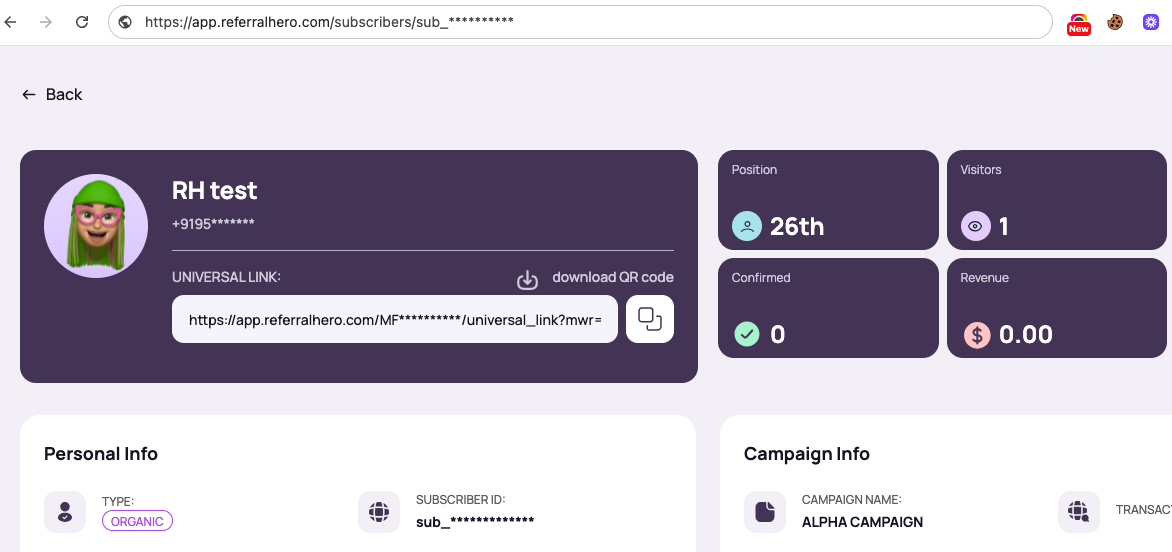
1. Get your universal link from the **Subscriber Profile** in ReferralHero.\
Example: `https://app.referralhero.com/MF******/universal_link?mwr=e86****`
2. On your iPhone, **paste the link into the Apple Notes app** (or a similar app).
3. **Long-press** the link (don’t use 3D Touch).
4. Tap **“Open”**. This will:
* Create a **Referral Visitor** in your ReferralHero dashboard.
* Redirect you to the **App Store** (if the app is not installed).
5. **Install the app**:
* For iOS, use **TestFlight**.
* For Android, use the **APK file**.
6. After installing, **open the same universal link again**.
7. This time, the link should **directly open the app** instead of going to the store.
8. After registering in the app, the referral system will:
* Recognize the **existing Referral Visitor**.
* Update referral details like **name**, **email**, etc.
***
**2.4. Testing with Live Store Links (Post-App Launch)**
Once your app is live on the App Store or Google Play Store, it's essential to update the campaign settings with the correct store URLs to ensure seamless referral tracking and redirection in a production environment.
This step validates that Universal Links function as expected in the live app, accurately capturing referral data and attributing it during the user’s registration process.
**✅ Key Expectations:**
* Clicking the referral link opens the **installed app** (if present), or redirects to the **correct store page** (App Store or Play Store).
* The app captures and attributes referral data correctly upon user registration.
* The referral visitor is updated with user details like name, email, etc., and marked as **converted** in the dashboard.
**🧪 Testing Steps:**
1. **Update the Campaign**\
In the dashboard, add valid App Store and Google Play Store links under the **"Track iPhone & Android App Downloads"** section.
2. **Install or Open the Live App**
* If the app is **not installed**, clicking the referral link should redirect to the correct store page.
* If the app **is installed**, the link should open the app directly via Universal Links.
3. **Complete Registration in the App**\
Register using the live app after opening via the referral link.
4. **Validate Referral Attribution**
* Confirm that the referral visitor (created when the link was clicked) is updated with the user’s registration details.
* Check that the referral is marked as **converted** in the dashboard.
***
### 5. Expected Outcomes
✅ **Referral Tracking Activation via Toggle**\
Referral tracking through Universal Links only starts working once the **“Track iPhone & Android App Downloads”** toggle and the **“Our team uses Airbridge.io”** toggle are enabled in the campaign settings.
✅ **Universal Link Behavior**\
When a Universal Link is opened:
* A **Referral Visitor** is created, capturing device type, OS version, and other metadata.
* If the app is **not installed**, the link redirects the user to the **App Store** or **Play Store** with referral data embedded.
* If the app **is installed**, the app is launched and can access the referral data via Airbridge SDK.
✅ **Live Store Links Post-Launch**\
Once valid store links and App launched on App/Play Store:
* Clicking the referral link opens the **App Store** or **Google Play Store** as expected if the app is not installed.
* If the app is installed, it opens directly without redirect.
* Full registration flow functions correctly with referral tracking.
***
### **6. Troubleshooting**
| Issue | Possible Cause | Suggested Solution |
| ------------------------------- | ---------------------------------------- | ----------------------------------------------------------------------------------- |
| Universal Link not opening app | App not opened once after install (iOS) | Open the app at least once before testing the link |
| Link opens store instead of app | Missing URI Scheme or Associated Domains | Ensure correct values are set in `Info.plist` and Airbridge dashboard |
| Referral not tracked | Tracking toggles not enabled | Enable “Track iPhone & Android App Downloads” and Airbridge integration toggle |
| App not launching via link | Deep link incorrectly formed or expired | Regenerate the link via Airbridge dashboard |
| No referral data in app | Airbridge SDK not capturing session | Check Airbridge SDK logs and ensure initialization is correct |
| validateSDKIntegration fails | Config mismatch | Ensure Airbridge key, URI schemes, and link domain match in both dashboard and code |
***
### **7. Conclusion**
This documentation ensures smooth and reliable testing of the mobile app in development mode before it goes live. Developers should:\
✔ Test on multiple devices (iOS and Android)\
✔ Validate referral and event logs in the database after each test\
✔ Confirm that live App Store / Play Store links are correctly configured and functioning post-launch
**Next Steps:**
* Perform cross-device testing.
* Validate backend logs for accuracy.
* Coordinate with the web team for deep link setup (if issues arise).